When videos are too long, you can pick up a video trimmer to make them shorter and engaging; if you find your downloaded video contain Ads, you can grab a video trimmer to cut ads out from a download video.
A simple video trimmer allows you to quickly create videos for social media, personal projects, entertainment, and more. Better yet, AI-powered video trimmers can automate much of the editing process, helping you save time while producing high-quality content with minimal effort.
In this guide, you'll learn how to trim a video using FlexClip's AI-powered tools, including its Long to Shorts feature, as well as traditional editing options for precise control. We'll also introduce several other online video trimmers that make cutting and trimming videos fast, easy, and hassle-free.
Contents:
Free Editable Templates for Your Video Inspirations


Also Read: 4K Convert to 1080p without Watermark: Free Online 4k Video Converters >
Part 1 Recommended AI-powered Instagram Video Resizer - FlexClip
One of the best online video trimmer we highly recommended is FlexClip. It is an AI-powered video trimmer that offers multiple ways to help you trim and cut your video in just a few clicks. From automatically creating short clips from long videos to text-based editing and manual timeline trimming, it provides flexible solutions for every editing need.

Method 1 Auto Clip a Long Video with FlexClip AI Long to Shorts Converter
Long videos, like podcasts, webinars, interviews, and livestreams, often contain valuable moments hidden within hours of footage. Instead of manually reviewing the entire recording, FlexClip's AI Long to Shorts Converter can automatically detect engaging highlights and transform them into shareable short clips.
AI Video Trimmer - FlexClip Long to Shorts Tool
Key Features:
Now, let's check the detailed steps below to learn how to trim a long video with FlexClip AI:
Step 1 Open FlexClip's Long to Shorts Maker
Click the Trim Video with AI button above to access FlexClip's Long to Shorts Maker. Then, upload the video you want to trim to short clips. You can paste a YouTube link, upload a video from your computer, or even import a file from Google Drive.
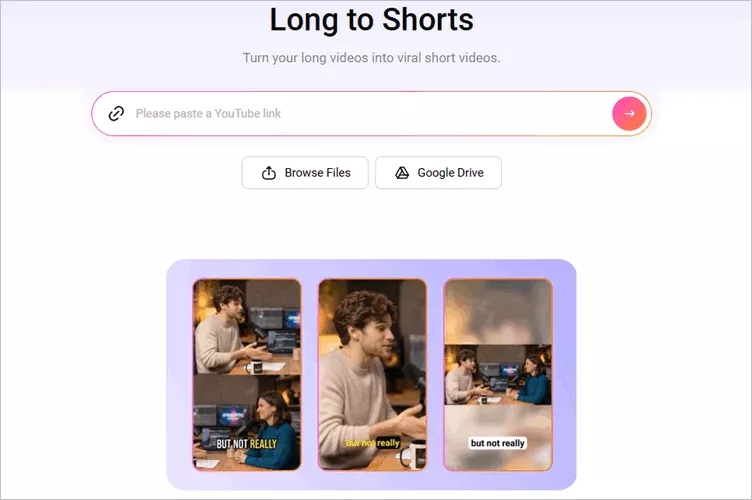
Trim with FlexClip AI Long to Shorts Converter - Access FlexClip's Long to Shorts Maker
Step 2 Adjust the Settings
Once your video is loaded, FlexClip will automatically take you to the settings page, where you can customize how the AI converts your content. Choose the aspect ratio—9:16, 16:9, 1:1, or 4:5—to match your need, then adjust additional options such as language, clip type, subtitle style, and more to create new video clips.
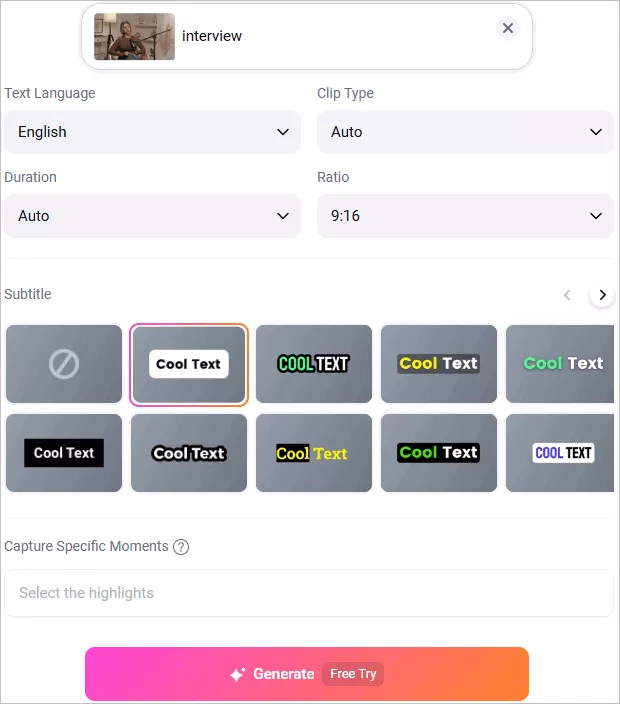
Trim with FlexClip AI Long to Shorts Converter - Adjust the Long to Short Video Setting
Step 3 Trim Your Video with One Click
After that, click the Generate button to start the conversion. FlexClip's AI will analyze your video, reframe it, highlight key moments, add automatic subtitles, and create multiple short clips that are perfectly trimmed and sized for you.
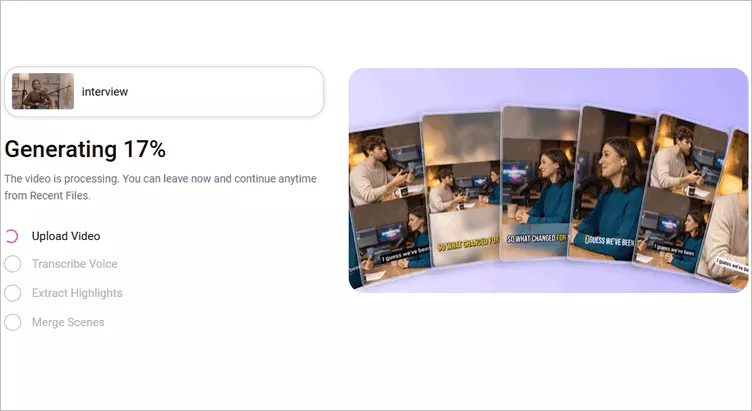
Trim with FlexClip AI Long to Shorts Converter - Generate Viral Shorts with One Click
Step 4 Preview and Download the AI-Generated Clips
Once your clips are generated, you can preview all the AI-generated videos. If you need any adjustments for the AI-generated clips, you can click the trim button to access the full video transcript and select any portion from the transcript text to pick the clips that showcase the most impactful moments of your content and generate a new clip.
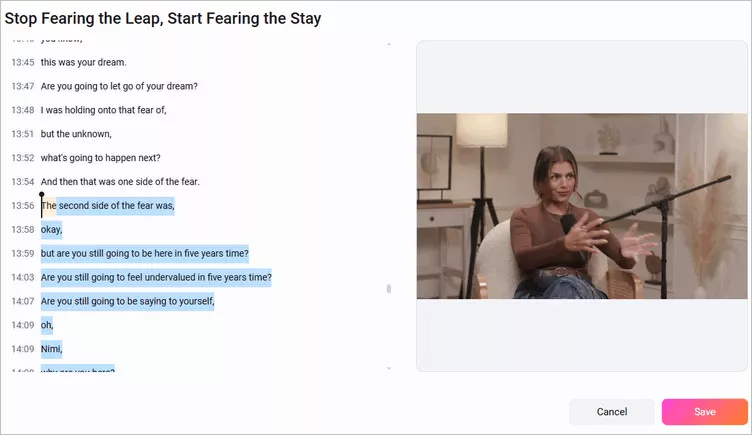
Trim with FlexClip AI Long to Shorts Converter - Select and Trim Clip
Once satisfied, you can choose the clips to download and share it directly. Need more precise edits to prefect your video? Just click the Open in Editor button and take your video clips into the built-in editor and make edits freely.
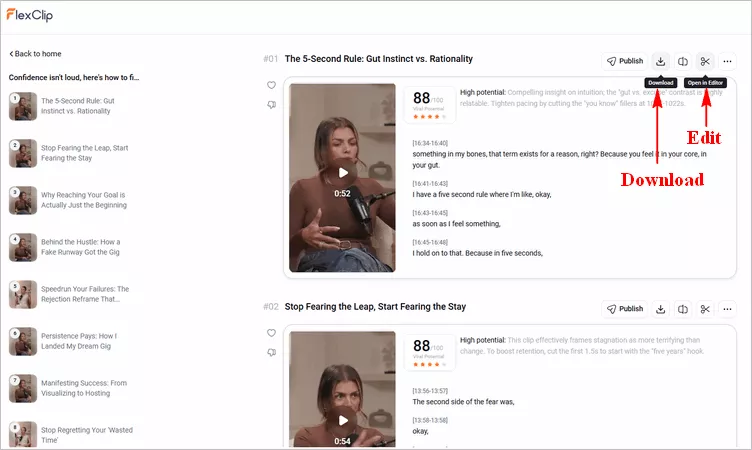
Trim with FlexClip AI Long to Shorts Converter - Download or More Edits
Method 2 Automatically Trim a Video with FlexClip AI Text-Based Editing
Text-based editing revolutionizes the traditional video editing workflow by allowing users to edit videos just like editing a text document. FlexClip also offers such a feature for you to trim a video just by editing text.
After the video is uploaded, FlexClip automatically generates a transcript. Instead of searching through the timeline, you simply delete unnecessary words, sentences, or paragraphs from the transcript, and the corresponding video segments are removed automatically.
Key Features:
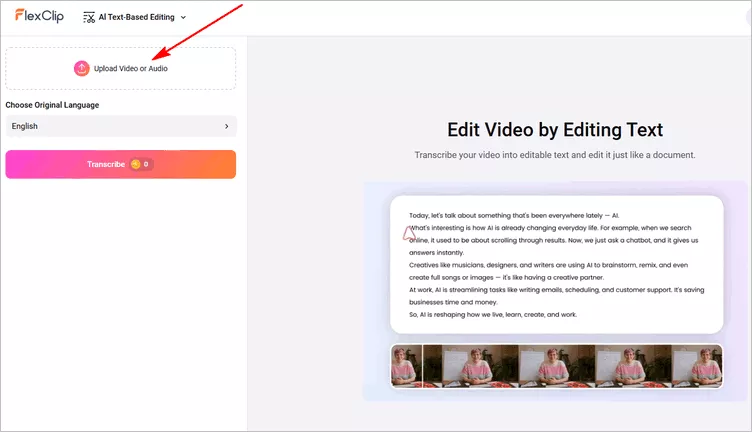
Trim a Video with AI Text-based Editor - Upload
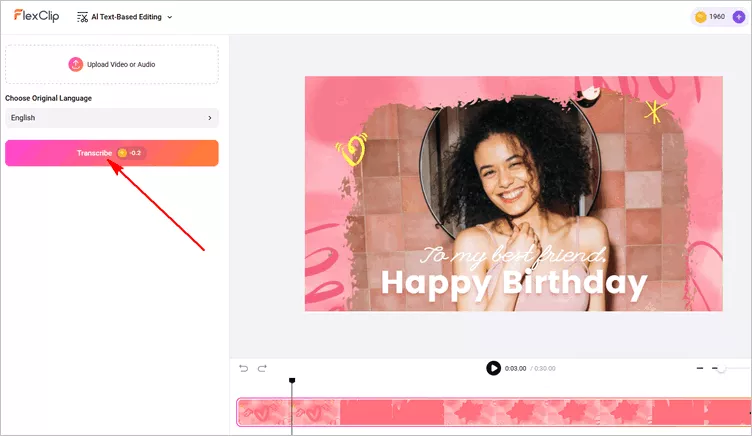
Trim a Video with AI Text-based Editor - Transcribe
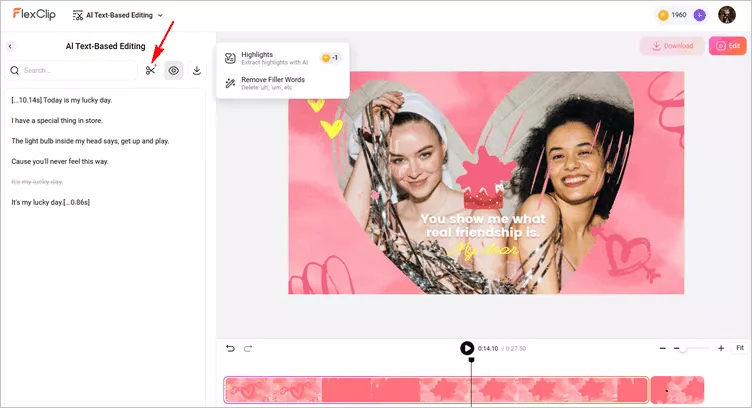
Trim a Video with AI Text-based Editor - Edit and Cut
Method 3 Manually Trim and Cut a Video with FlexClip Timeline Editor
Prefer complete control over your edits? FlexClip also offers a traditional timeline editor. The timeline interface allows you to manually trim the beginning and end of clips, split videos into multiple segments, and remove unwanted sections with precision.
Key Features:
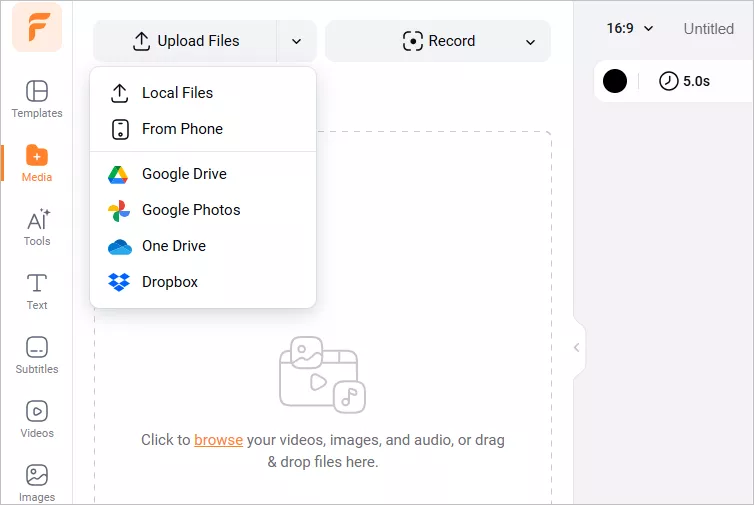
Resize Video for Instagram without Cropping in FlexClip - Upload
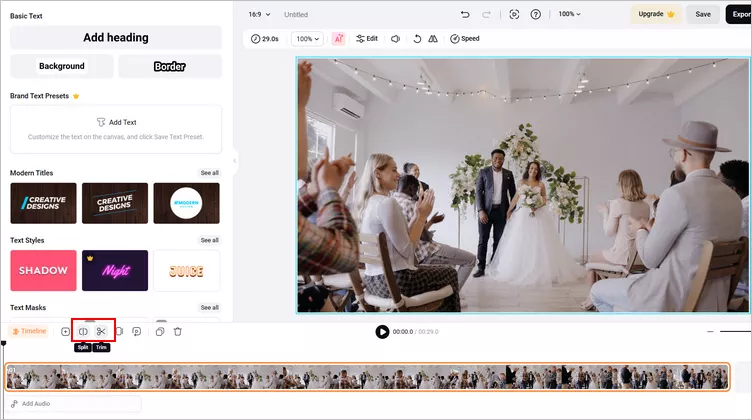
Resize Video for Instagram without Cropping in FlexClip - Trim or Split
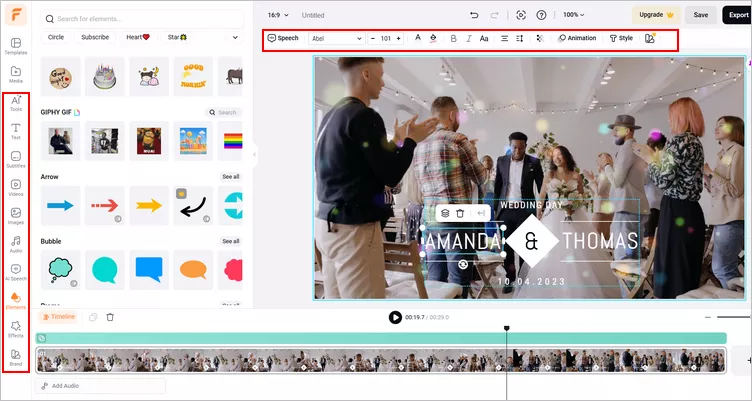
Resize Video for Instagram without Cropping in FlexClip - More Edit
Part 2 Other Simple Online Video Trimmer for You
Besides FlexClip, there are more other simple video trimmer you can try to cut and trim a video clip easily. Check out one by one:
Simple Video Trimmer - Online Video Cutter
Online Video Cutter comes in handy when you need a quick video trimmer to cut a small video file online. It does not require installation, and it works in your browser directly. You can do easy video trimming in this simple video trimmer tool. There are no complicated controls to trim and cut a video clip — every feature is just one or two clicks away.
To trim a clip, simply pick the video you wish to trim, and then wait for it to upload. Once the video is uploaded, you are able to use the simple tools the website offers in order to trim your video quickly.
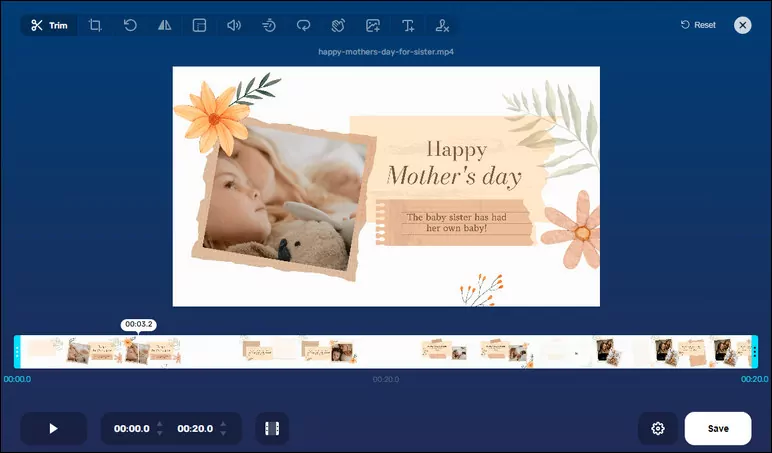
Simple Video Trimmer - Online Video Cutter
Simple Video Trimmer - Fastreel
Wondering how to cut or trim a video online quickly? Fastreel is another great tool you can try. This online video trimmer is intuitive to use – no complicated settings or confusing buttons. It offers handy video cutter to help you cut out parts of a video and change the video clip length in just a few clicks. You can cut your video exactly where you want and remove all the unwanted segments with great ease with Fastreel.
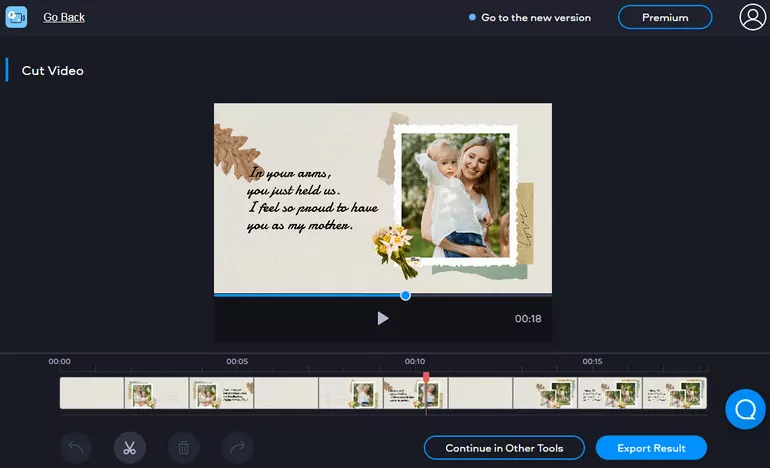
Simple Video Trimmer - Fastreel
Simple Video Trimmer - Kapwing
Kapwing also offers a great online video trimmer with a fairly simple interface that help you cut and trim your clips quickly. Its intuitive interface makes it easy to create video cuts with its precise timeline slider and keyboard shortcuts. You can trim a video by dragging or by splitting your clip in the perfect sections. Cut video into sections, split clips and rearrange, and get the perfect section of your video exported in just a few clicks in Kapwing.
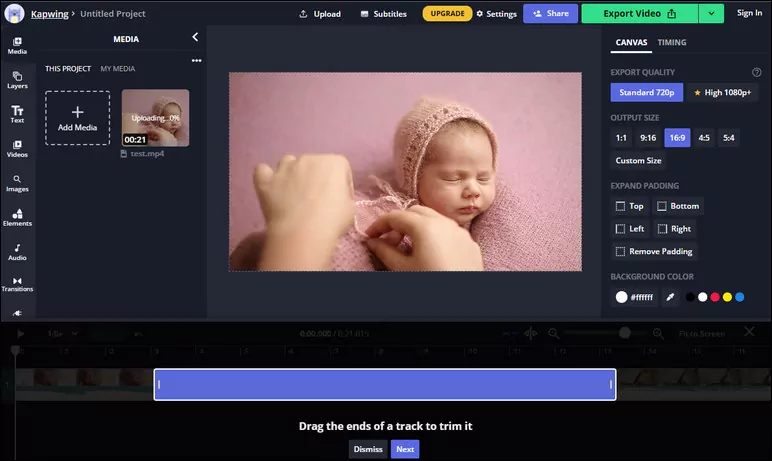
Simple Video Trimmer - Kapwing
Simple Video Trimmer - Clipchamp
To trim and cut a clip online quickly, you can also try Clipchamp's free online video trimmer. You can use this simple online video trimmer to cut videos to the perfect length in with a few quick clicks and get your videos finished faster. Besides trimming a clip, it allows you to split, merge, and crop videos according to your desire with great precision. the process is also quick, a simple trim and edit can be executed in a matter of minutes.
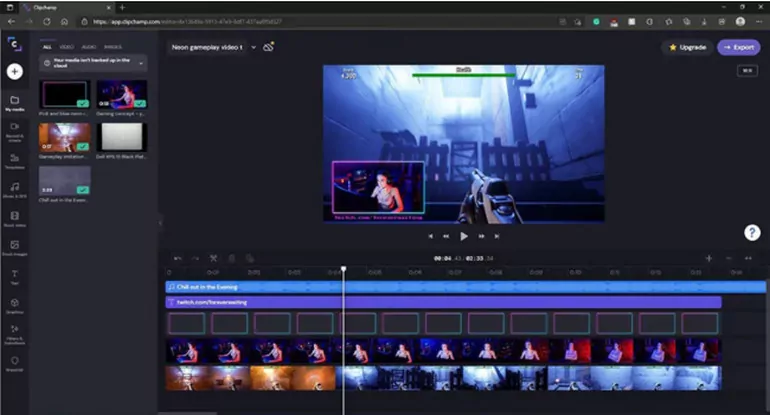
Simple Video Trimmer - Clipchamp
Final Words
Online video trimmers have made video editing more accessible than ever. Whether you want AI-powered automation, text-based editing, or precise manual trimming, there is a solution available for every skill level and use case. All of them are easy as a breeze to operate so that you can cut and trim your video freely with great ease. Just try them out right now.




FlexClip AI Video Maker
Reach professional-quality videos faster with easy editing tools, templates, and smart AI.
Start Now for Free
Hot & Trending
-

Best Ways to Find Music in YouTube Videos
-

Instagram Story Video Quality Bad After Upload? Fix It!
-

How to Repost Video on TikTok & How to Remove TikTok Repost
-

Improve Video Quality Online: 3 AI Video Quality Enhancers You Can't Miss
-

4K Convert to HD 1080p without Watermark: Best 4k Video Converters
-

Best 8 Free Video Editors - No Download Required
-

Top 13 Birthday Video Makers with Music and Effects Free
-

How to Search Filters on TikTok & Use a Filter You See - TikTok Filter Guide